Modding A Chrome Extension
Modding a Chrome extension to automatically ingest mhtml archives of websites into DogGame!
Okay so after failing a little while ago I finally went back to make a Chrome extension that automatically moves the files it Downloads into my DogGame! corpus for indexing.
The wall I hit last time (iirc) was that even once I’ve made an http endpoint that does the copying, I can’t hit it through a Chrome extension because the extension can’t hit an ip address on a port that isn’t 80 (because http), and DogGame! is not bound to port 80.
*I assumed because of some errors Chrome spit out that targeting a port in a url was not allowed. This may or may not be true but I assumed it was and found a solution that doesn’t require sending the http request to a non-standard port.
I know from my time setting up K3S that I can use a reverse proxy to route the traffic from port 80 to the port that DogGame! is attached to so I decided to set that up. I chose to use Nginx because I’ve used it before. I read (from a google search) that the easiest way to install Nginx on Windows 11 is through WSL so I did that.
Now because Nginx is in WSL and DogGame! is in Windows it makes the networking weirder. Here’s what I ended up with:
TLDR: #
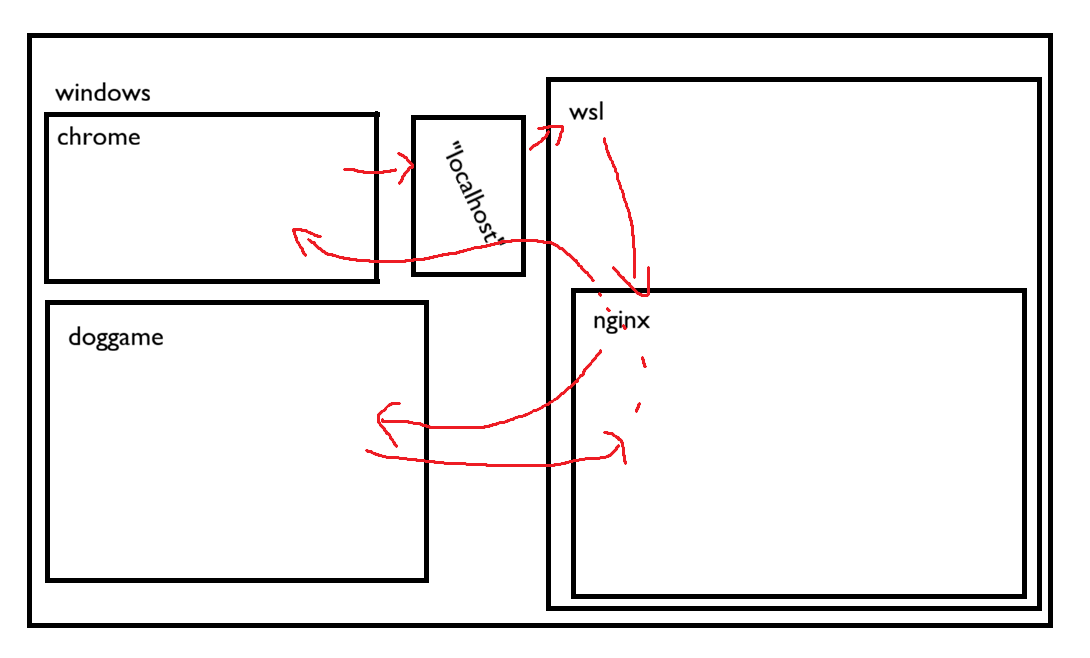
Here’s all the steps that I took to get here:
Modifying Hosts #
Windows has a file called hosts that is like your local DNS overrides. I added doggame.local to mine and pointed it at localhost (technically 127.0.0.1).
Installing & Configuring Nginx #
I had an Ubuntu image setup in WSL2 already so I installed and configured Nginx in there.
I started by making this file:
sudo nano /etc/nginx/sites-available/doggame.local
I put this in it:
server {
    listen 80;
    server_name doggame.local;

    location / {
        proxy_pass http://<WINDOWS_HOST_BRIDGE_IP>:<DogGame!_PORT>;
        proxy_set_header Host $host;
        proxy_set_header X-Real-IP $remote_addr;
        proxy_set_header X-Forwarded-For $proxy_add_x_forwarded_for;
        proxy_set_header X-Forwarded-Proto $scheme;
    }
}
Then made a symlink and restarted Nginx:
sudo ln -s /etc/nginx/sites-available/doggame.local /etc/nginx/sites-enabled/
sudo systemctl restart nginx
When I did this originally, I had Nginx point
doggame.localat127.0.0.1:<DogGame!_PORTbut this doesn’t work in WSL’s default network configuration (it uses NAT by default but it’s weird bc Windows can see into WSL but WSL can’t see into Windows throughlocalhost).
Getting out of WSL #
WSL can’t talk to things on Windows localhost by default. There’s a thing called virtual gateway ip (find it w/ip route show | grep -i default | awk '{print $3}' in WSL)
(I’m not sure if it’s static). Now WSL can reach Windows but it can’t reach DogGame! yet because the Python webserver is bound to localhost so that needs to be changed. Changing it to all interfaces (0.0.0.0) works but I’d rather only WSL is able to see it for security, so I changed the server mount to the same virtual gateway ip and now the whole route works!
Those final steps were:
- Modify host to route
doggame.localtolocalhost - Add Nginx to WSL
- Find WSL’s ip address
- Create Nginx rule for the website to go to the port
- Bind DogGame! to WSL’s ip
The last thing left was to do the thing I originally set out to do:
Modding The Chrome Extension #
I started with this extension that I’ve been using for making the .mht archives. By default it just downloads the file. Originally the plan was to have the extension send a POST request to the ingest endpoint with the file name as it’s payload, but after spending too long remembering that I am bad at Javascript, I decided to instead be lazy (for now) and send an empty payload and just move all the .mht files from my downloads to DogGame! whenever the endpoint is hit.
The only things I had to modify besides adding the fetch() call to the end section of the extension (Javascript is weird btw, I’ll probably understand one day) was adding "host_permissions": ["http://doggame.local/*"], to the manifest.json and add a header to the post request response as well.
Results #
It works great and is super epic however any time I close the WSL terminal Nginx dies and the whole system goes with it. It’s fine with me to keep it open on another desktop as a temporary solution but in the long run I think an app like this (single user desktop search engine that runs entirely on machine) should be restructured to use a local application instead of a webserver so that you don’t need a reverse proxy constantly running for it to work. One other thing that might make this work more consistantly too would be setting up Nginx or some other reverse proxy directly in windows.
Or I could switch to linux :]
That’s all for now. Happy learning to you!